Light Ops
The whole season.
One connected system.
Built inside a Christmas lighting business.
Rebuilt as Light Ops 2.0 around one job record.
The business behind the build
A whole year of work.
A very small window.
That is the pace of our own Christmas lighting business. Quotes become jobs. Dates move. A crew needs the right details. A customer needs an answer. Every handoff matters.
Before Light Ops, the answers lived in spreadsheets, texts, emails, notes, and different apps. As the business grew, keeping those pieces connected became the hardest part.
Operating volume supplied by the business owner.

Why we rebuilt it
One job.
Moved by hand.
Light Ops 1.0 ran the business, but its rules had spread out. Our own audit found the same rule, such as a job's day or a customer's step, written in several places that could drift apart.
2.0 starts from how Brendan ran the business before any software: a task created once, then moved between lists as the work progressed. In Light Ops, that task is the job. Quotes, invoices, payments, visits, notes and photos attach to it, and it is never copied as it moves.
- Needs Quote
- Quote Sent
- Needs Scheduling
- Scheduled
- In Progress
- Completed
The main stages. Repair, Started · Not Completed and Not Interested sit beside them, and a job can move to any of them.
One record, three points of view
The same job.
Wherever it's needed.
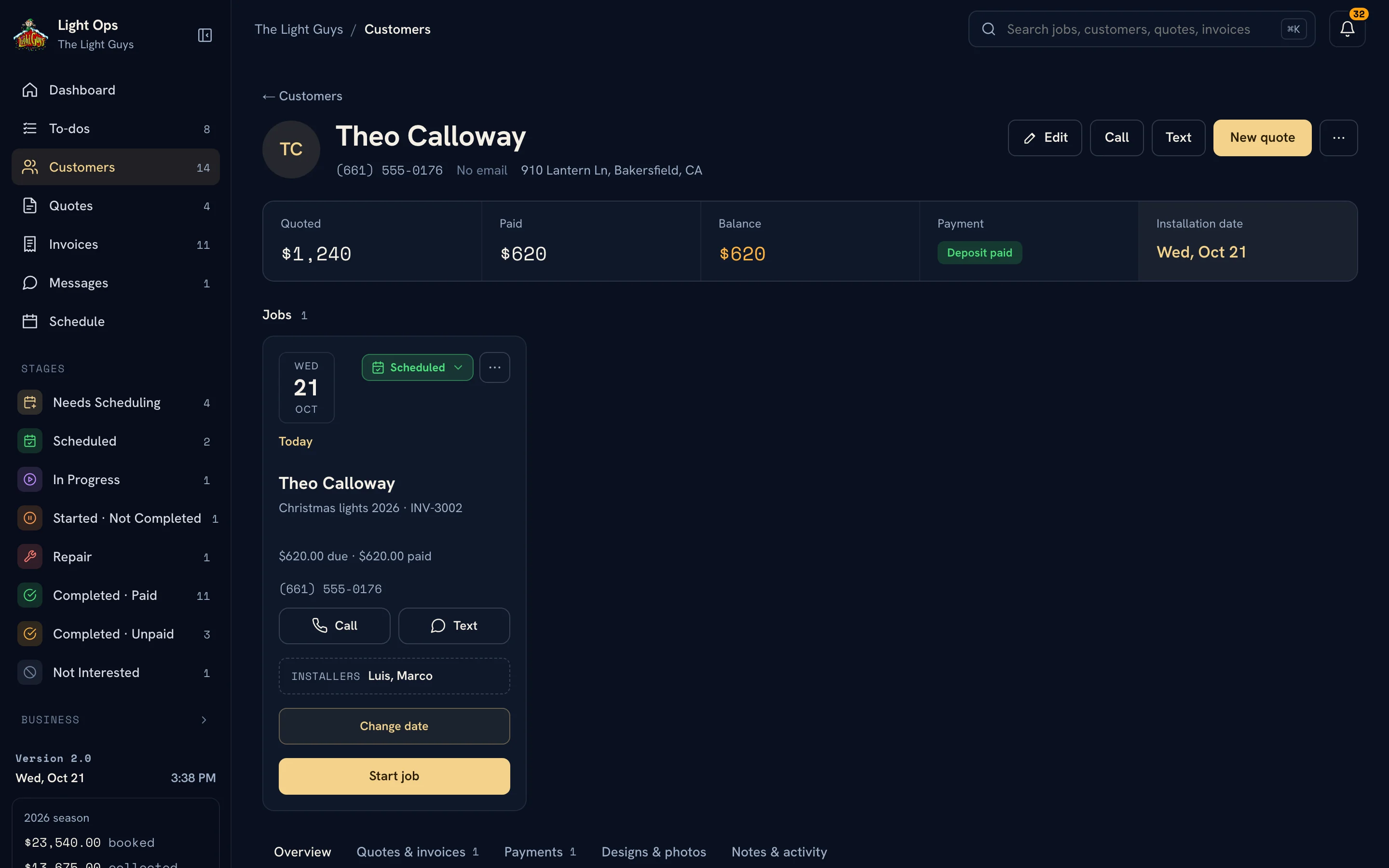
The office moves the job. The customer sees their project. The crew sees the day's stops. Each view reads the same record, so a change in one place shows in all of them.
A job goes where Brendan puts it.
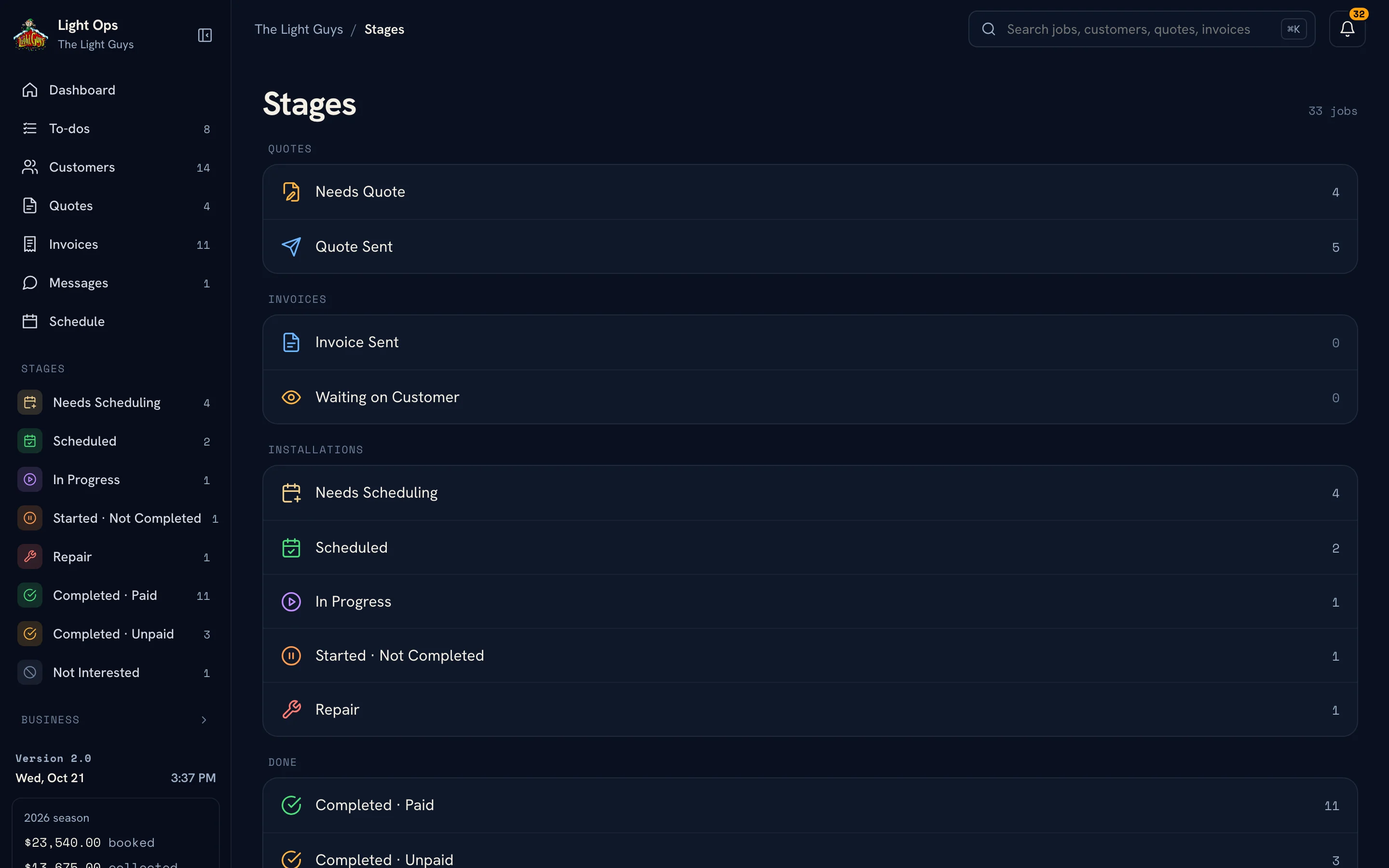
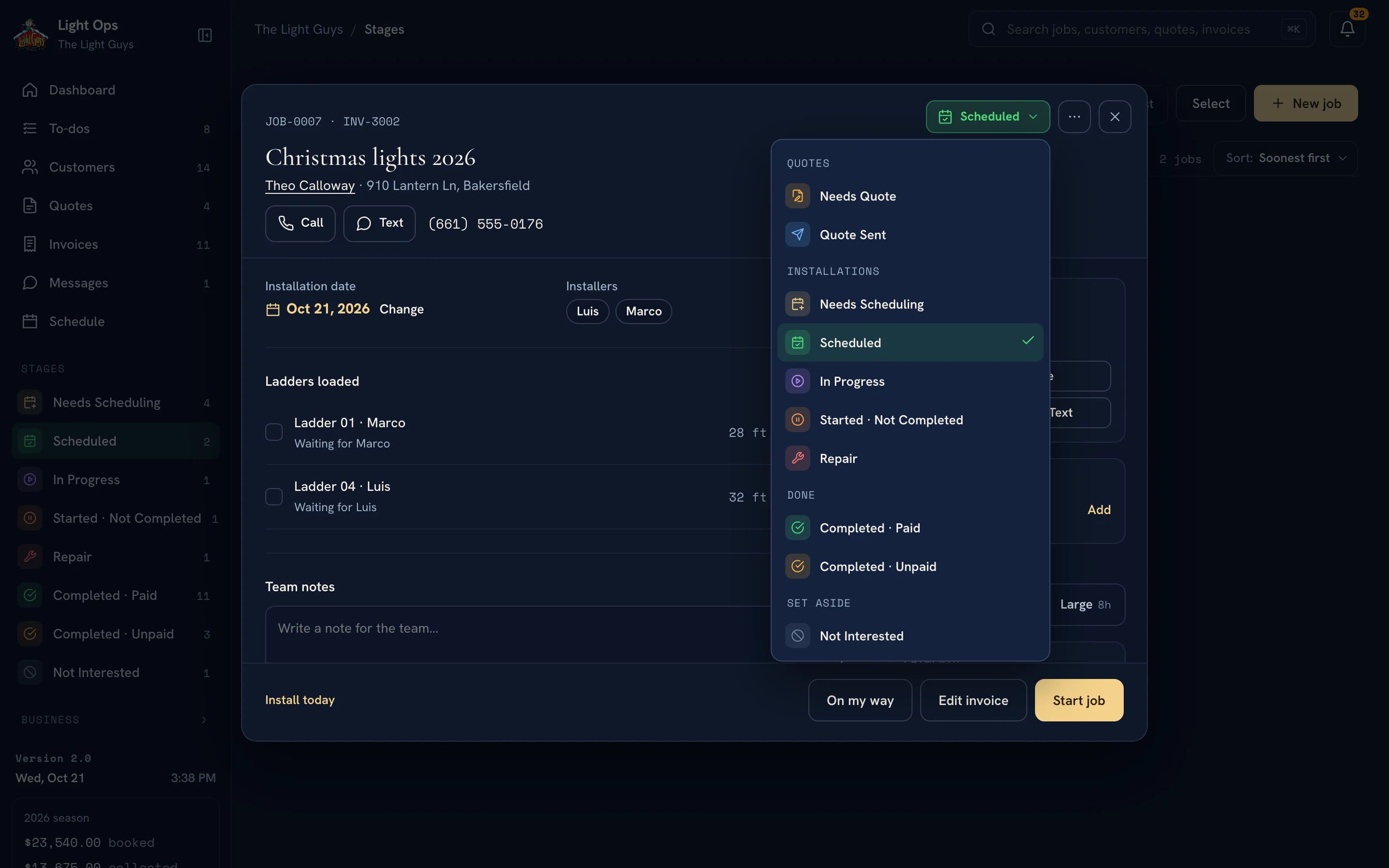
There are no rules deciding where a job belongs. Brendan moves it with one menu, or drags it onto a stage on a computer, and each move is recorded. The stages list shows where everything stands.
Their own page, from the same record.
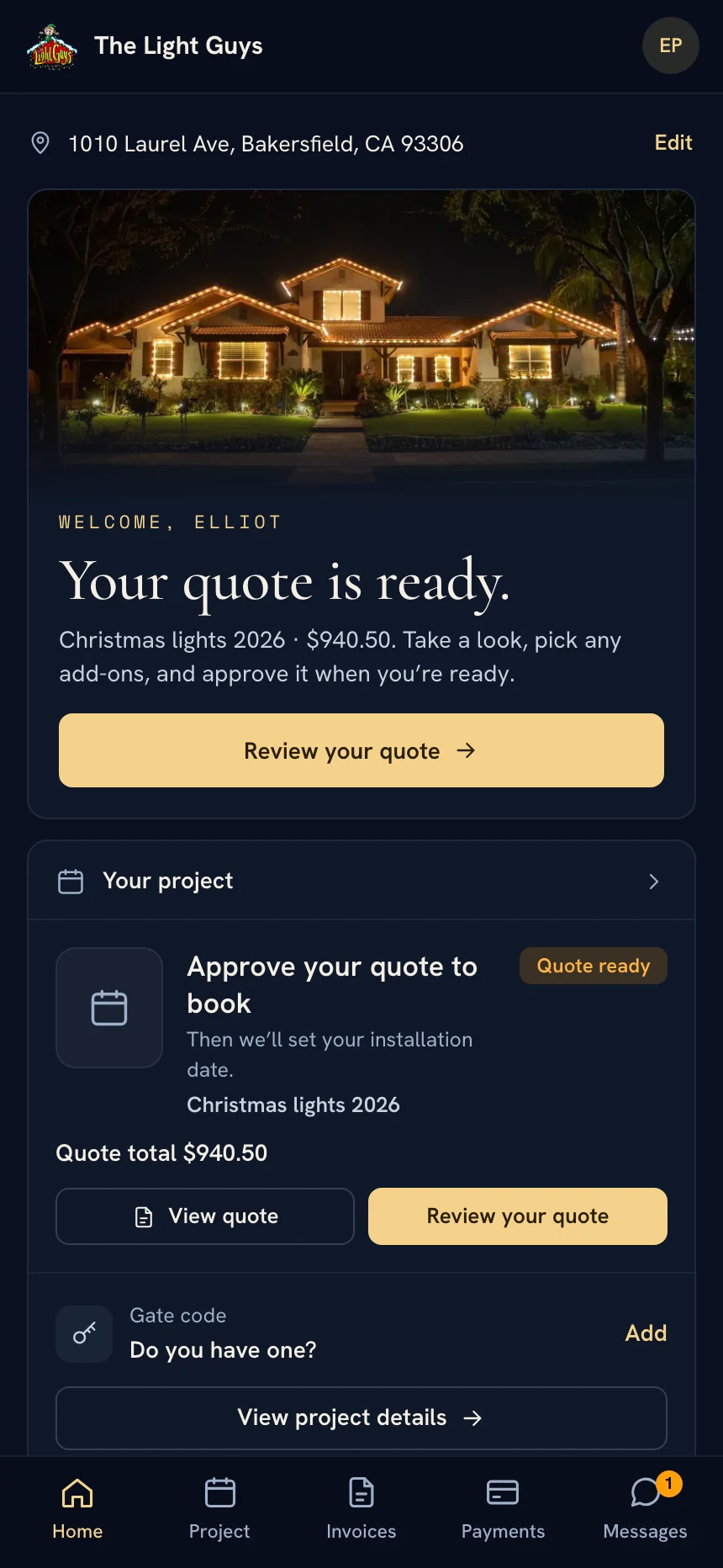
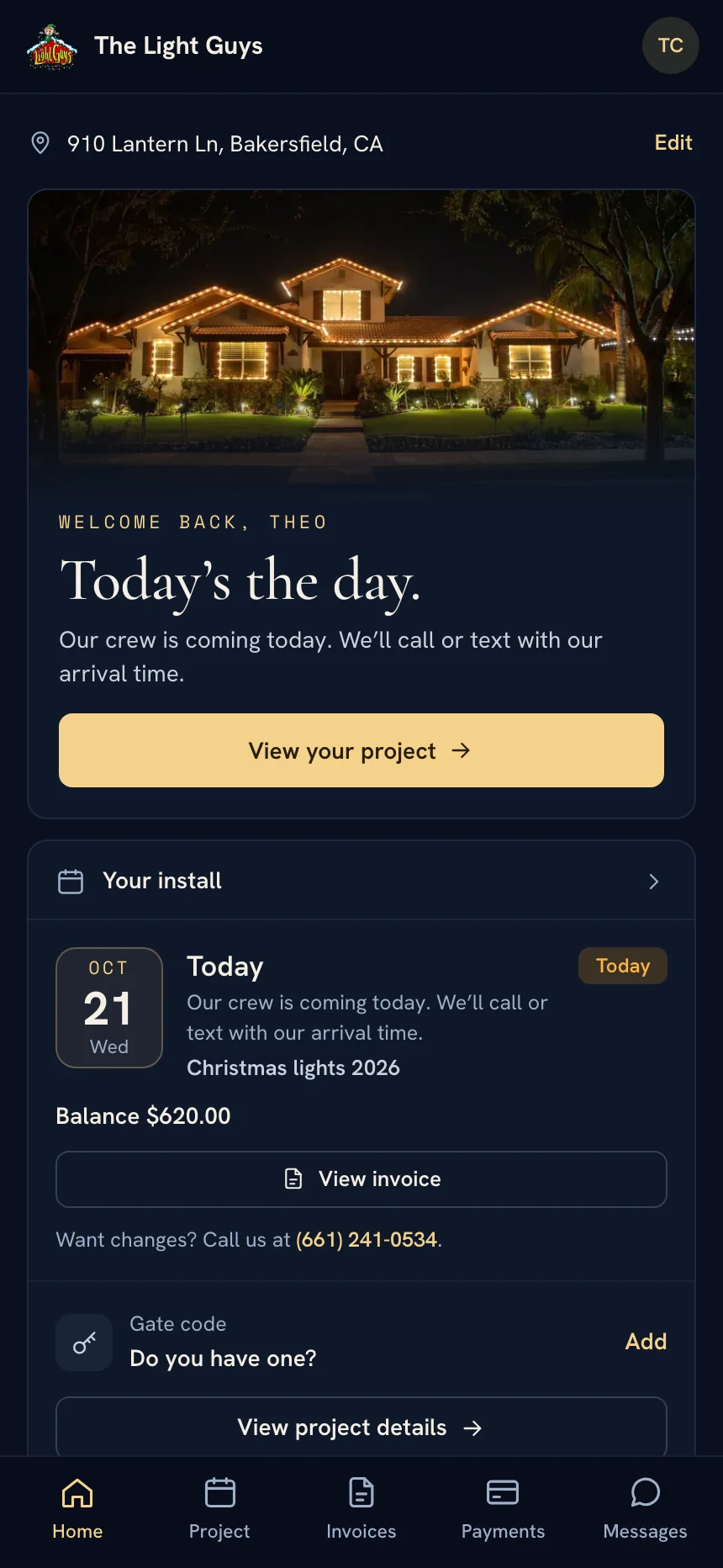
Each customer gets a private Light Guys page. It leads with their next step, then their project, invoices, payments and messages.
The page follows
the job.
Before booking, it asks for a quote approval. On install day, it shows the date and the balance. The customer never has to ask where things stand.
The next stop. The details to do it well.
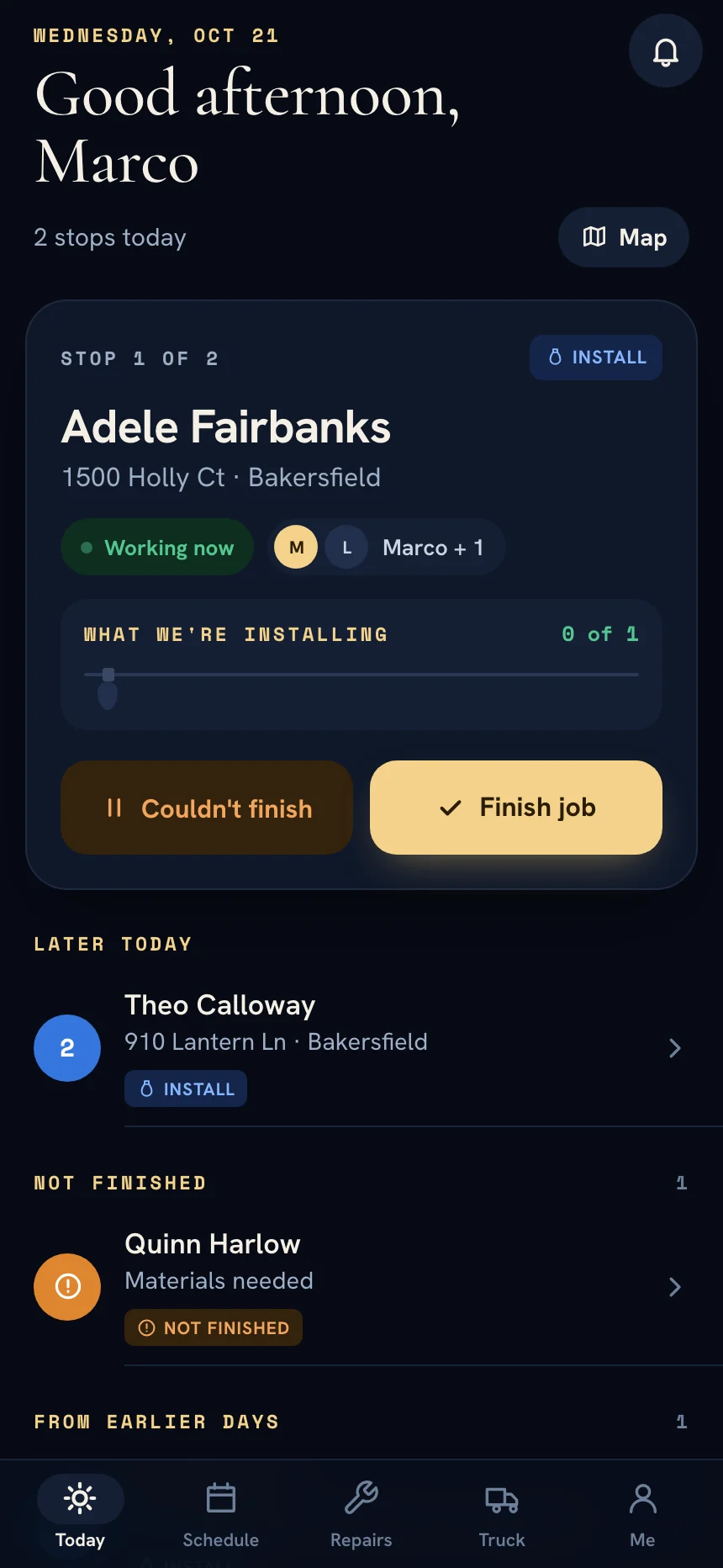
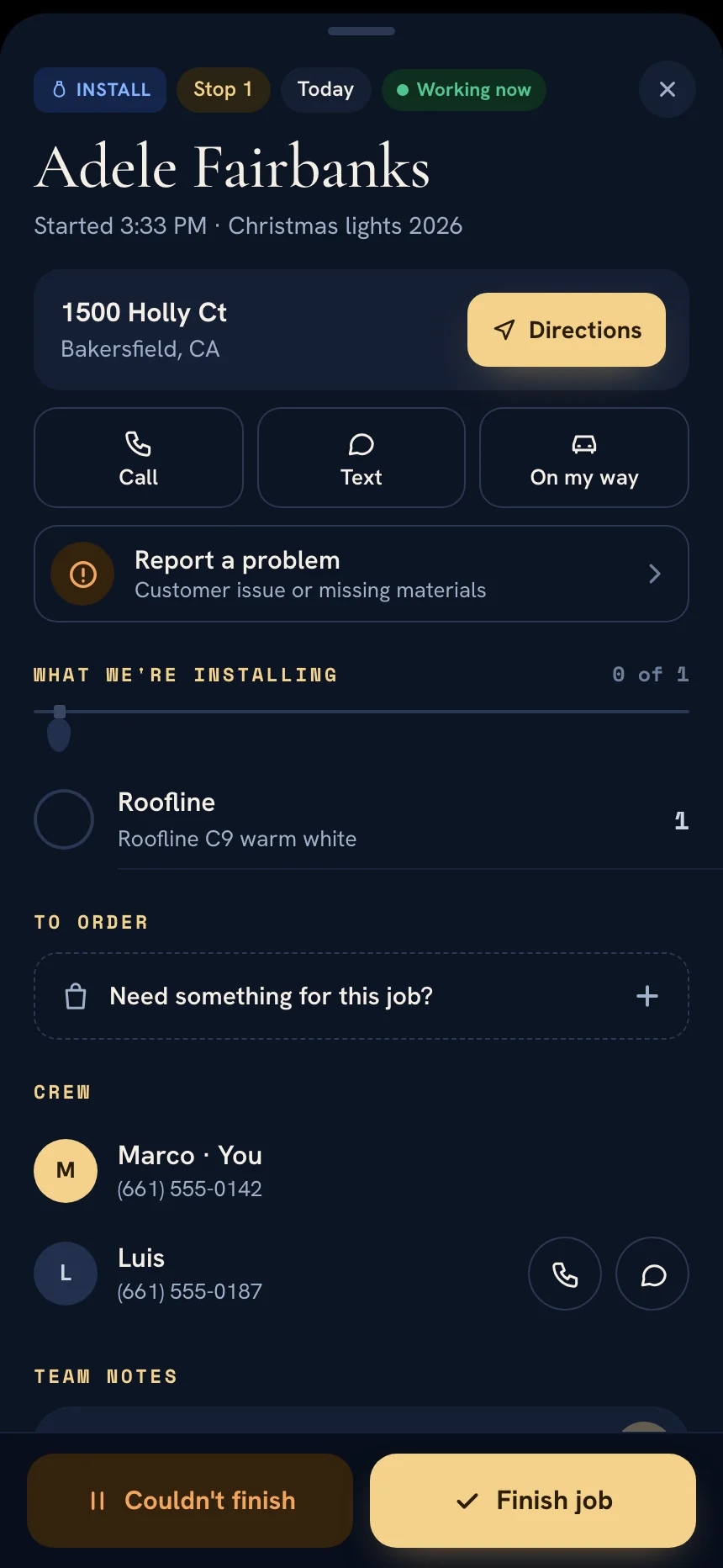
The crew app shows each installer the day's stops in order, with directions, what to install, materials to order and who they are working with.
Built for the moment
the work happens.
From the job, an installer can call or text the customer, send On my way, report a problem, and finish the job or mark it not finished. The office sees it on the same record.
Money the system works out
Brendan moves the job.
Light Ops does the math.
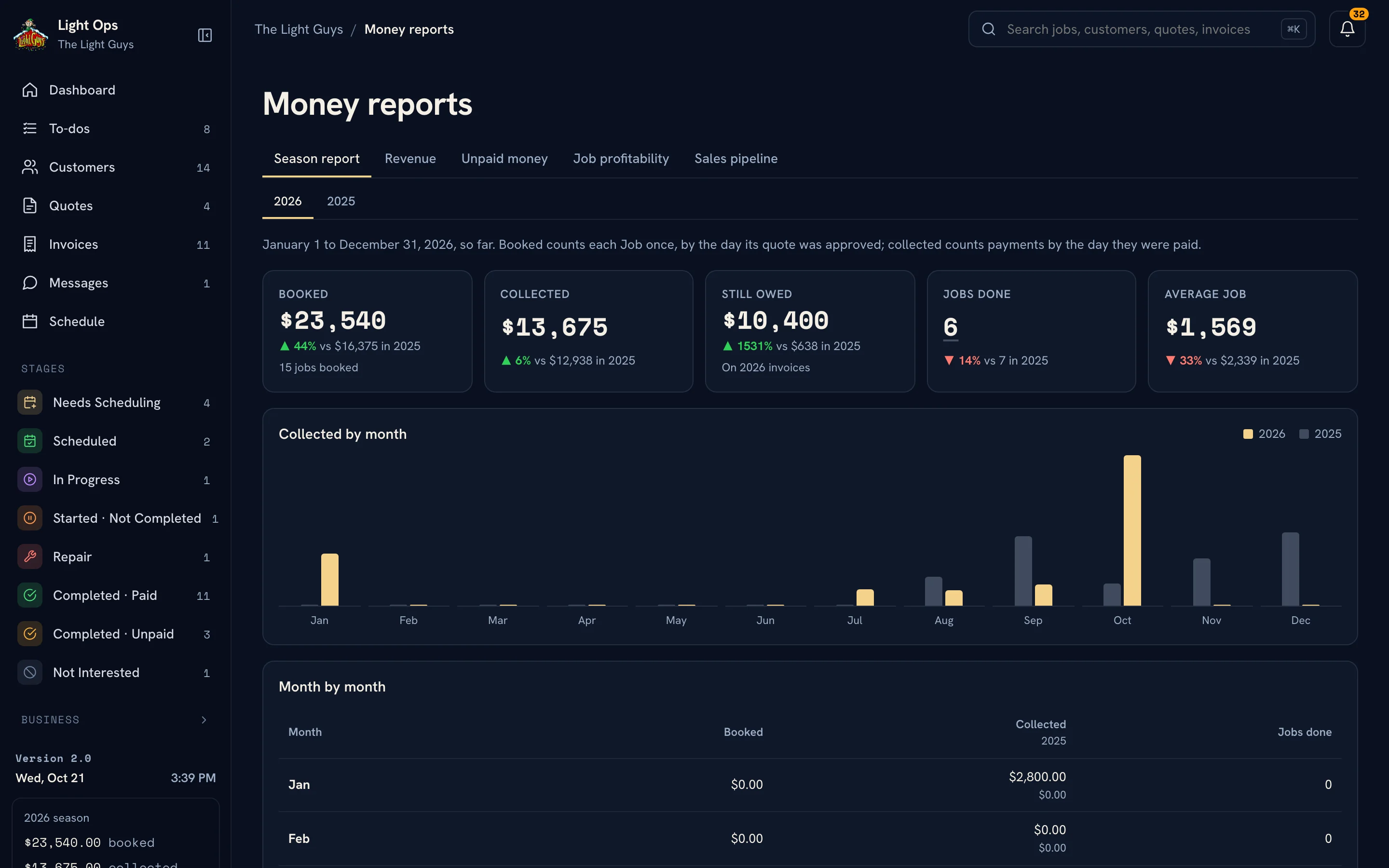
Money is the one thing that updates on its own. Light Ops stores the invoices and payments, then works out the balance. A finished job shows as Completed · Paid or Completed · Unpaid from that balance, so no one has to remember to change it.
Moving a job into scheduling turns its approved quote into the job's one invoice. The deposit, 50% by default, and the balance come from the same numbers.
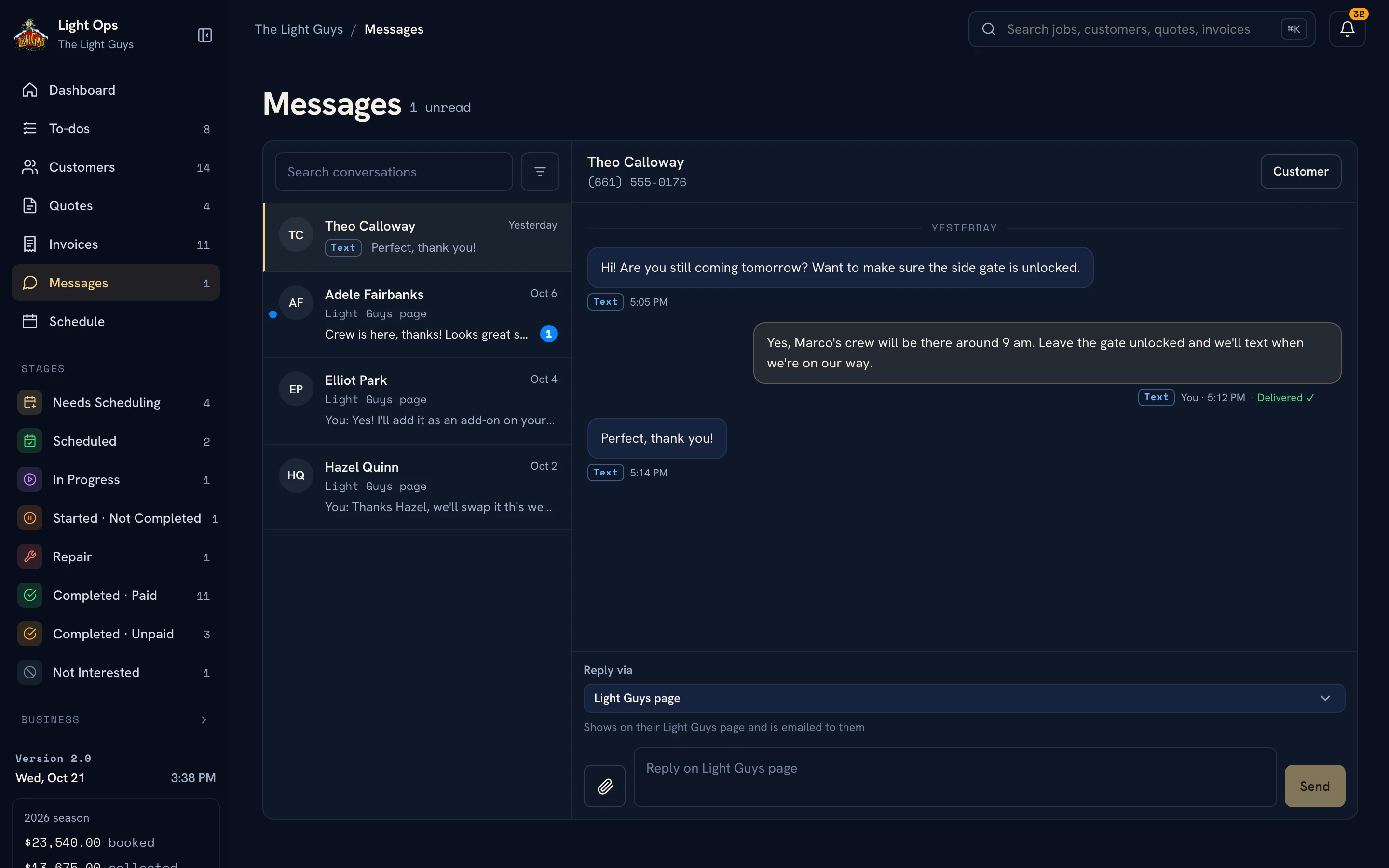
Texting, in the same conversation
One thread per customer.
Texts included.
Customers text the business number, and replies go out from it. Texts sit in the same Messages conversation as notes from their Light Guys page, each marked Sending, Sent, Delivered or Not delivered. A reply of STOP blocks the number until START.
From the office to the driveway
Software should make
the real work easier.
A crew member has different questions from the office. Where am I going? What are we installing? Which details matter at this house?
The crew app carried over from the first version into 2.0, on the new job record. This walkthrough was recorded on the earlier demo, with made-up jobs.
The experience starts before the office
A front door.
A connected follow-through.
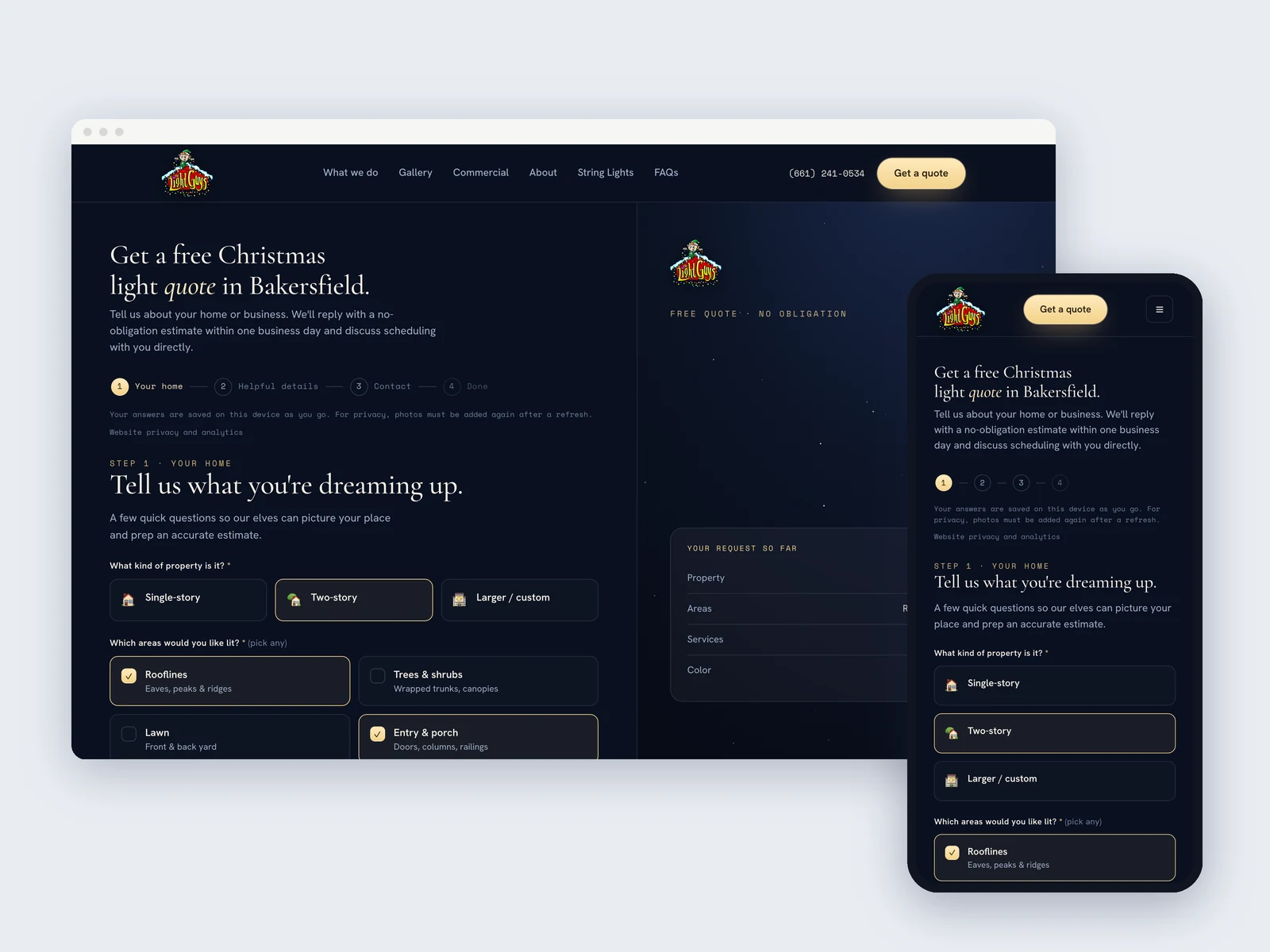
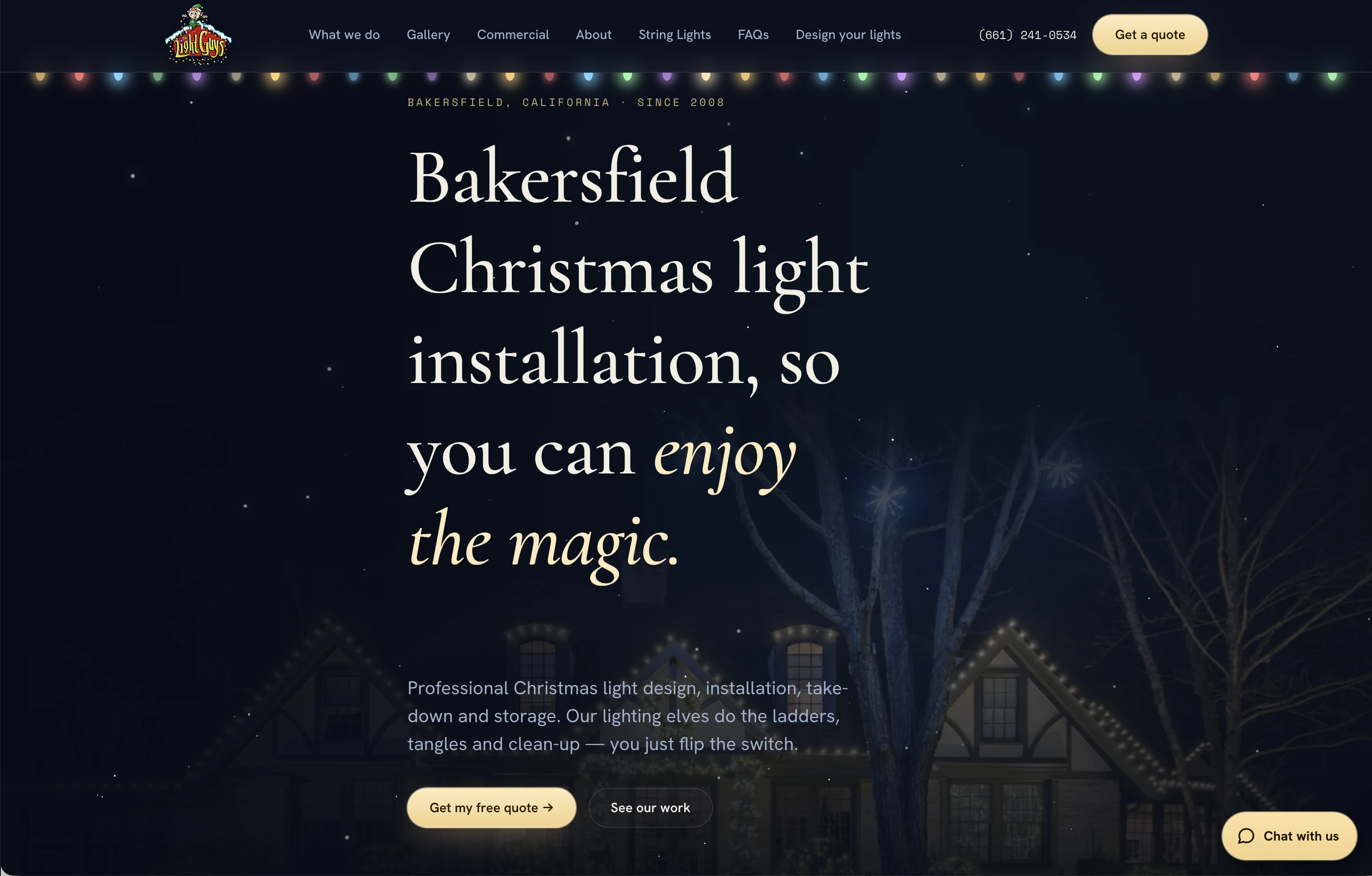
The public website introduces the service and starts the conversation. A request from its forms becomes a customer and a job in Needs Quote, so the first contact starts the same record that carries through quoting, installation and payment.
Light Ops 2.0 in use
Light Ops 2.0 replaced the first version on October 7, 2026, with the business's existing records copied into the new system. These parts run the season now.
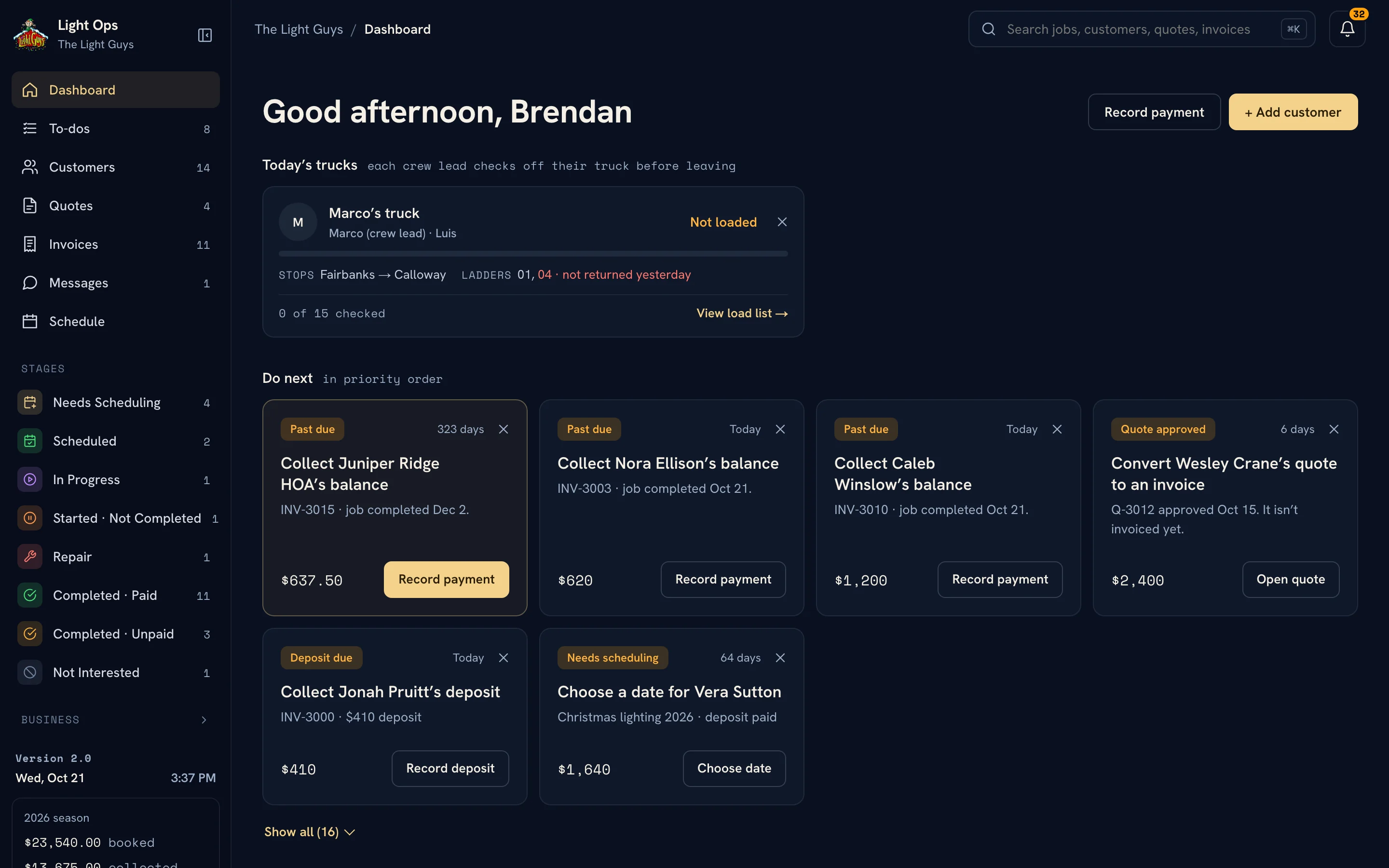
Visit the Light Ops website Opens in a new tab- Stages and the job popupEvery job in one place, moved by menu or drag.
- Quotes and invoicesA quote converts once into the job's single invoice.
- Customer pagesQuote approval, install day, invoices and messages.
- TextingTwo-way texts from the business number, with delivery status.
- Crew appThe day's stops, checklists, ladders and notifications.
- ScheduleCalendar, map and ladders for the season.
- Money reportsBooked, collected, unpaid money and job profitability.
- Recently DeletedA delete can be undone, and nothing is lost by a slip.
The first version, interactive
Step inside
Light Ops 1.0.
These working demonstrations were packaged from Light Ops 1.0 with fictional records. 2.0 changed how jobs and money work underneath; the screens above show the current version.
Scroll inside either screen to explore. Scroll outside the mockups to continue.

Built from inside the business
Brendan Collins
As the owner behind Collins Creative and The Light Guys, Brendan brought the daily reality of a Christmas lighting business into the software.
The work began with the disconnected tools we were using. Running the business on Light Ops 1.0 showed what to simplify, and that shaped the one-job model behind 2.0.
Meet the studioCustom software, built around your business
Your workflow could
be your next advantage.
Tell us where the work gets disconnected.
We’ll help you see what a better system could do.
More Collins Creative work